
Variables
Understanding Variables
What is a Variable?
A variable represents a measurable characteristic of a well that can assume different values.
Available Variables
Digital Oilfield comes pre-configured with over 50 variables, ready for input.
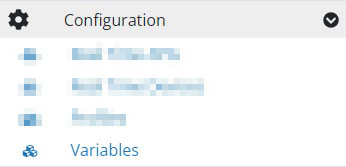
To customize your variables, use the navigation menu.
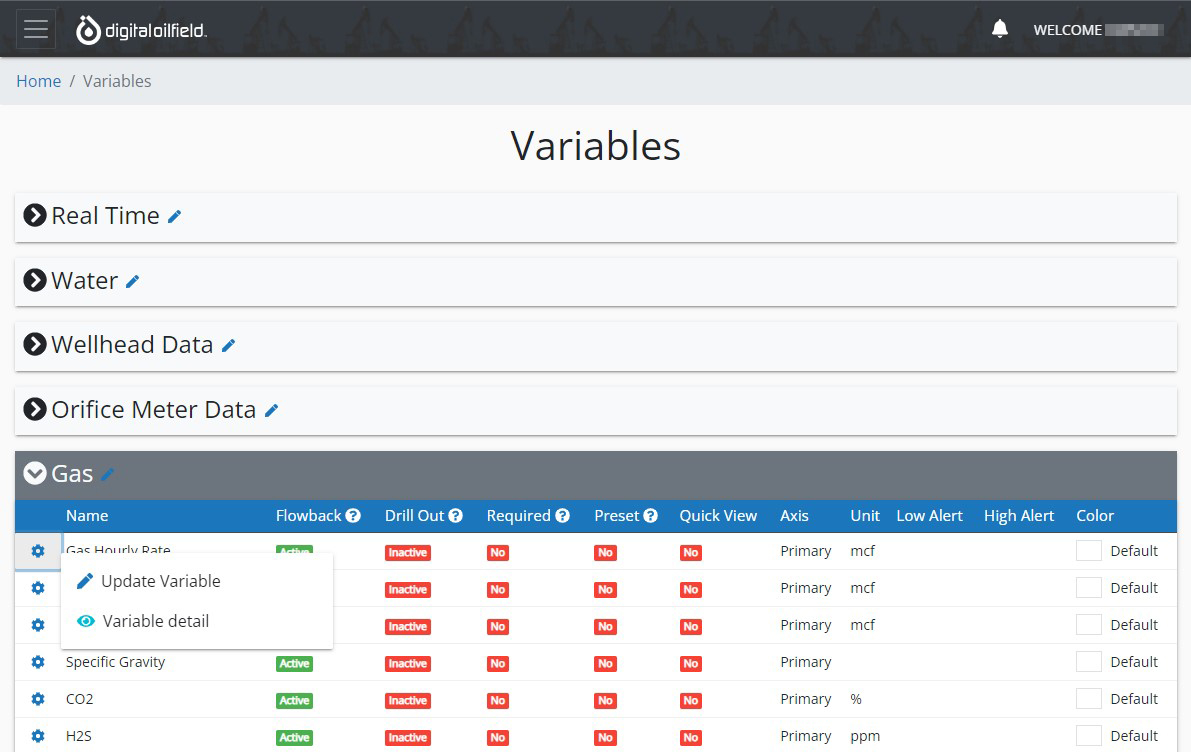
Customize a Variable
General Settings
Under the General settings tab, you can:
- Rename the variable.
- Define a group for organizational purposes.
- Set the unit of measurement for the variable.
Activation Settings
- Active: Toggle whether the variable is active or inactive during different operational stages (e.g., flowback, drill out, real-time).
Mobile Settings
- Required: Specify whether input of the variable is mandatory.
- Preset: Establish a default value that appears for quick input, requiring confirmation before submission.
Alerts Management
Manage variable-specific alerts via exception processing. For setup, refer to Low/High Value Alert.
Reporting Settings
Configure how variables appear in reports:
- Axis: Select the default axis in reports for the variable. You can choose between the primary and secondary axes to better visualize relationships between different variables.
- Line Style: Define the style of the line used in the graph for this variable. Options typically include solid, dashed, and dotted lines, allowing you to differentiate between multiple variables visually.
- Color: Choose a specific color for the variable line in the graph. This helps in easily identifying and distinguishing the variable among others in the report.
- Quick View: Pre-select this variable for quick inclusion in reports. This setting allows frequently used variables to be readily available, streamlining the report generation process.
These settings ensure that your reports are customized to your preferences, making data analysis more intuitive and effective.
Working with Variable Groups
Variables can be organized into groups for better management.
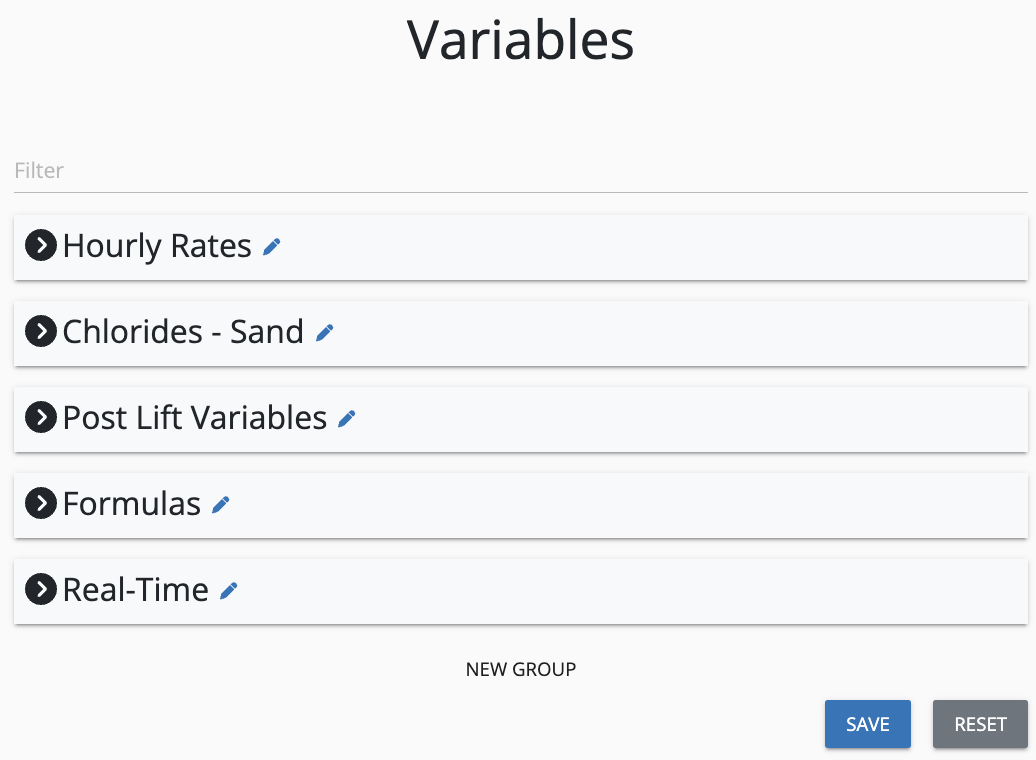
Create a New Group
At the bottom of the variable list, select ‘New Group’.

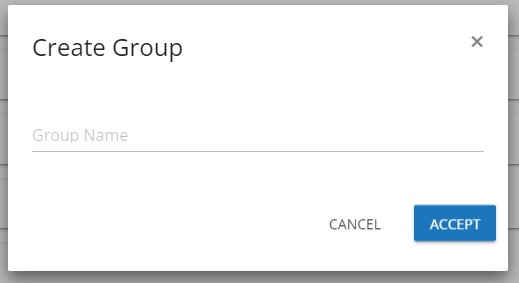
Enter a name for your new group. Once confirmed, a new empty group table will appear at the end of the list.
Managing Groups and Variables
- Move Variables: Drag and drop variables to change their group or reorder them within the group.
- Sort Groups: Organize the sequence of groups as they should appear on forms.
Delete a Group
Remove a group by transferring all its variables to another group. Once saved, the original group will be deleted automatically.
Related articles
FAQ
Can I define calculated variables?
Yes, you can define two types of calculated variables:
- Formula Variables: For instance,
GOR = ([gas_hourly_rate] / ([oil_hourly_rate]*24)) * 1000calculates the Gas to Oil Ratio. - Accumulative Variables: For example,
TWR = SUM([water_hourly_rate])accumulates the total water rate.
Variables like [gas_hourly_rate], [oil_hourly_rate], and [water_hourly_rate] are used in these formulas.