
Dashboard
Dashboard
Overview
Our customizable dashboard allows you to effectively monitor and analyze key operational data by creating multiple views, setting a default view, and managing widgets to suit your specific needs.
Key Features
- Create Multiple Views: Design various dashboard layouts for different operational perspectives.
- Select Default View: Choose a primary view that loads by default when accessing the dashboard.
- Edit Views: Modify your dashboard layouts as your monitoring requirements change.
- Add Widgets: Incorporate widgets that provide real-time data and insights.
- Edit Widgets: Customize widget settings to fit your data visualization needs.
- Resize Widgets: Adjust the dimensions of widgets to optimize dashboard space.
- Remove Widgets: Delete unnecessary widgets to maintain dashboard clarity.
Creating and Managing Views
Create New View

- Navigate to Saved Views.
- Click New View.
- Click Choose Columns to define the number of visualizations per row (1 to 6 columns).
- Use Add Widget to incorporate widgets as needed.
- Arrange widgets by dragging them into the desired position.
- Once your widgets are ready, click Save, and enter a name for your new dashboard.
Select Default View
- Navigate to Saved Views.
- Find the view you want to set as default.
- Click Set view as default ⭐ next to the view name.
Edit a View
- Navigate to Saved Views.
- Select the view you wish to edit.
- Make necessary adjustments to widgets or layout.
- Click Save to update the view.
Managing Widgets
Add Widgets
- Navigate to Add Widget in the dashboard settings.
- Select a widget from the list.
- Configure the widget settings as needed.
- Click Add Widget to update the dashboard view.
Edit Widgets
- Hover over the widget you want to edit and click on the pencil icon (✏️).
- Make the necessary adjustments in the Edit Widget panel.
- Click Save to apply your changes.
Resize Widgets
- Hover over the widget you want to resize and click on the pencil icon (✏️).
- Use the Expand and Shrink options to adjust the widget size as needed.
Remove Widgets
- Hover over the widget you want to remove and click on the pencil icon (✏️).
- Click the Remove Widget button.
Example Dashboard
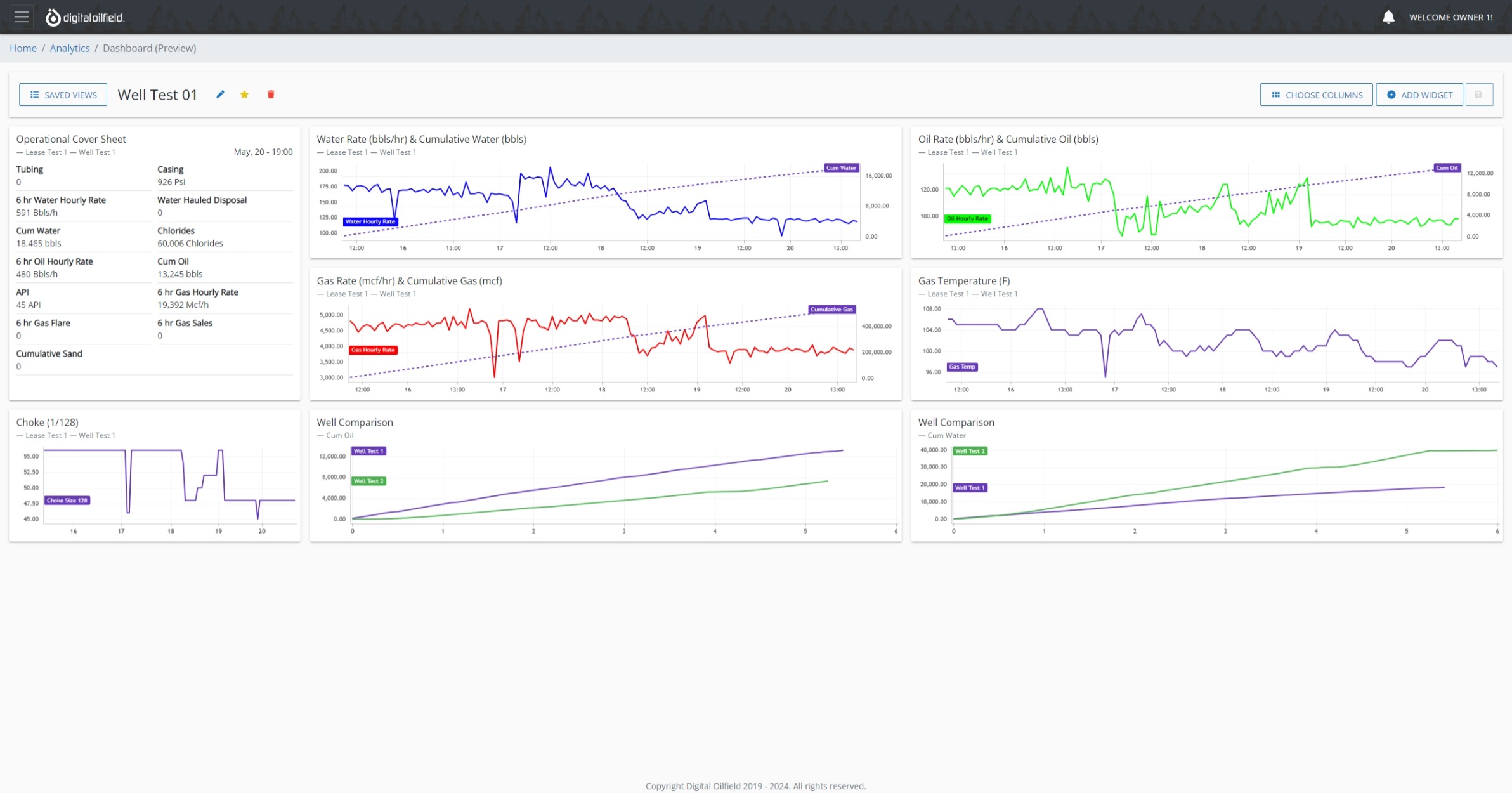
Here is an example of a customized dashboard layout:
Coming Soon
Templates for Dashboard Views
We are excited to announce that Templates for creating new dashboard views are coming soon! This feature will enhance your experience by providing pre-designed layouts and configurations, allowing you to quickly set up and customize your dashboards without starting from scratch.